
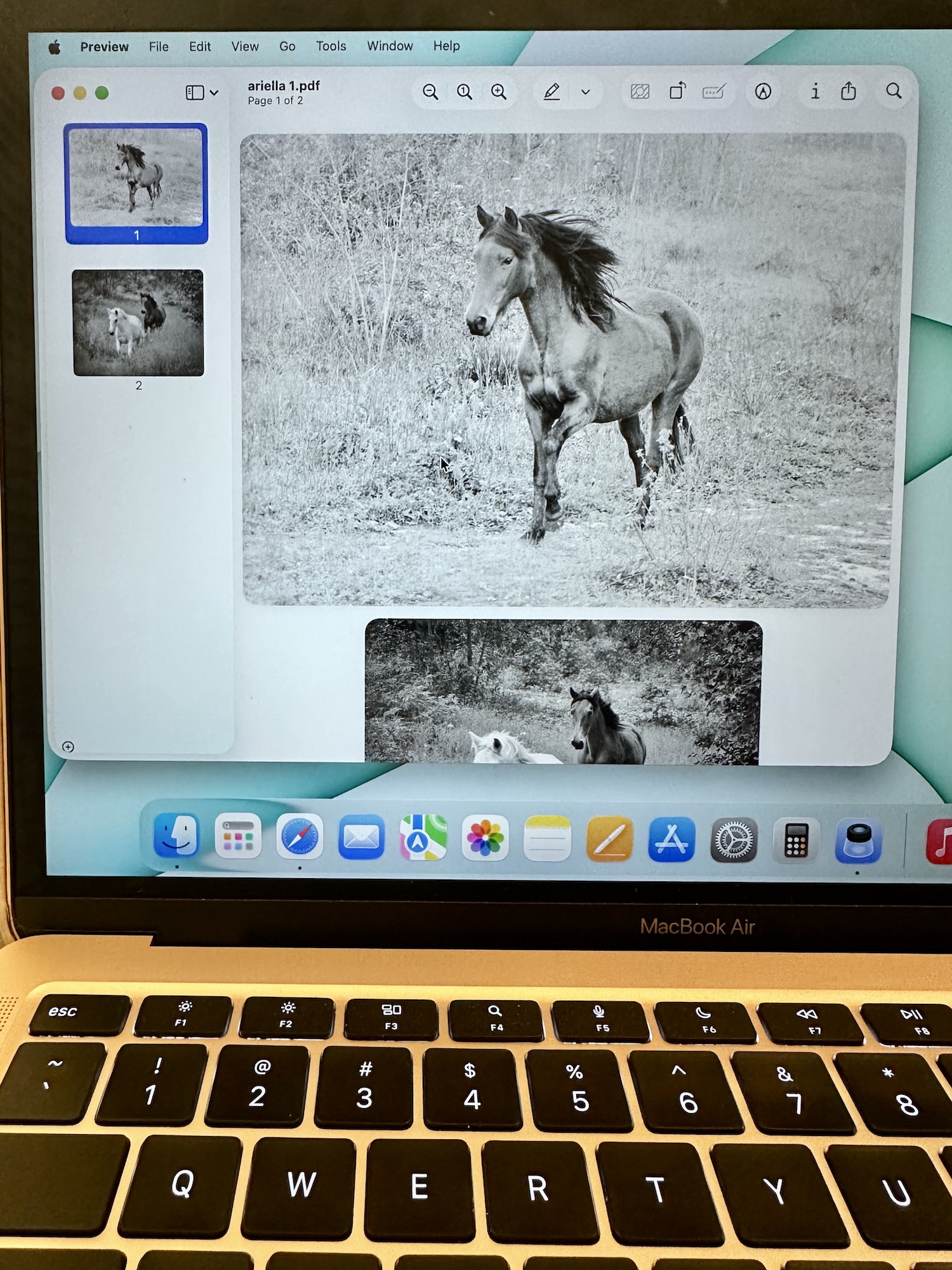
This will be quick. Looking for a way to create a PDF folder from a handful of images for submission? So was I. Steps are in numerical order:
- Drag and drop desired photos from “Photos” app to laptop background. You should see all desired photographs on your background screen.
- Click “Finder” app. Mine is located as the application that is most left on bottom of screen. Find yours. It is the icon of a face that is half blue and half white. All of the photographs added to laptop desktop are in “recents” section (upper most command, above shared) once Finder app is open.
- To click all of the images at once, press and hold “command” key while clicking every photograph you desire to add to a PDF. All of the selected images should have a gray color around the image and blue color around the image title, showing you the image has been clicked.
- Now press the “control” key and click one of the images. Go down the list to “Quick Actions” which has an “>” sign. Click Quick Actions and then click the “Create PDF” command. You should now have a new PDF with desired images.
 Adrienne Holton